How to Find a Song from a Video: Links, Camera Roll and Audio Clips
To find a song from a video, check its music label first, then choose:
- Playing on your phone? Try Shazam during playback.
- Saved video or audio file? Upload in Audio Finder.
- Public video URL? Use Song Finder by Link.
Check the video’s music label first
Check the sound label, description or creator credits before spending a scan.
In this example Short, YouTube displayed Impostor Syndrome · Sidney Gish beneath the title during our check. That gives you a song and artist to look up before scanning.

Treat the label as a lead: listen to the credited track and compare the same passage. We did not run a recognition scan for this example, and the label alone does not verify the recording version.
YouTube Help explains that some descriptions include automatic song and artist information. If yours does not, check the written description and pinned comments.
On TikTok or Reels, “original sound” does not necessarily identify the underlying song. Open the sound label if available; treat comments as suggestions to verify by listening.
Recognize music while the video plays
If you can replay the video on your phone, try playback recognition before exporting a file.
iPhone and iPad Control Center setup
Follow Apple’s instructions to add Recognize Music: open Control Center, tap Add Controls (+), then Add a Control. Choose Recognize Music. Then:
- Play the video in your app.
- Open Control Center and tap Recognize Music.
- Return to the video, replay the passage if needed, and review any match. Apple also describes using the Shazam app while switching to another app.
Shazam can recognize music with connected iPhone or iPad headphones, as Apple’s headphone guide explains. Controls vary by setup.
Android notification and Pop-Up Shazam
Start recognition in Shazam, then return to the app playing the video. Apple’s Shazam guide also covers notification controls and Pop-Up Shazam. Follow the setup and permission instructions for your device. If playback recognition does not work, try a supported public link or an authorized file.
Find music from a public video link
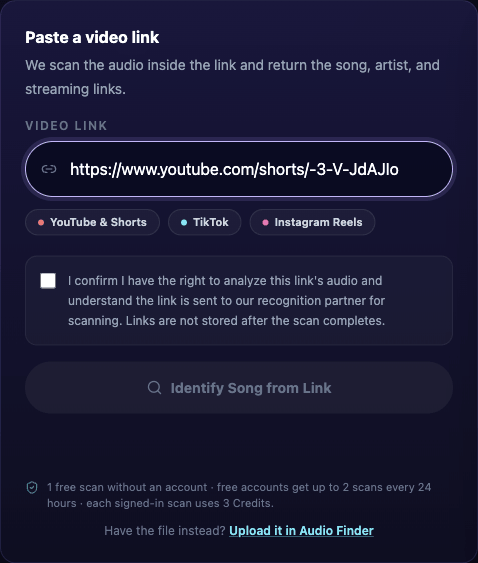
Use this route when you have a supported public URL and want a browser-based scan. You do not need to download the video first.
Before you scan: You get one guest link scan without an account. Signed-in free accounts share up to two identifications with Audio Finder in a rolling 24-hour window; each signed-in link scan uses 3 Credits. A completed no-match scan counts, while technical failures restore the scan or Credits. Paid users and users still holding purchased Credits bypass the daily cap and still use Credits per scan. Check the tool’s current notice; Audio Finder has separate guest allowances.
Three steps to scan a video link
- Paste the video link: Copy the direct link from your platform’s share menu. Paste the URL into Video link. The tool supports public YouTube videos and Shorts, TikTok videos, and Instagram Reels from a single video URL; playlists, livestreams, Stories, and private or login-restricted videos are outside its scope.
- Review terms and confirm rights: Read the notice: the URL goes to a recognition partner. Confirm only if you have the right to analyze its audio.
- Submit for recognition: Choose Identify Song from Link. Matches can include title, artist, available video positions and listening links. The tool does not provide the original video as an MP3 download.
Upload a saved video and choose the music
Use an authorized saved file when you want to select a particular passage. A public URL is not required.

Choose the file
Check your allowance before choosing a short clip: files of 30 seconds or less may proceed directly to identification after validation and quota checks. Longer submitted files may be reduced to their opening 30 seconds, so choose or trim later music first.
- Open the video in Photos or your gallery and check that it has audible music. Let a cloud-only file download if needed.
- Open Audio Finder and tap the upload area. Choose the video from your photo library or files; picker labels vary. If it is unavailable, export an authorized copy to Files or device storage.
- On a computer, use Browse Files or drag the file into the upload area.
MP4 and MOV video, plus MP3, WAV and M4A audio, are supported examples. Browser codec support still matters; renaming an extension does not convert the file. You do not need to convert an MP4 to MP3 if it decodes correctly. The current guest file-size limit is 10 MB; check other account limits in the tool. Trim an oversized video before uploading.
Selecting a clear 30-second snippet
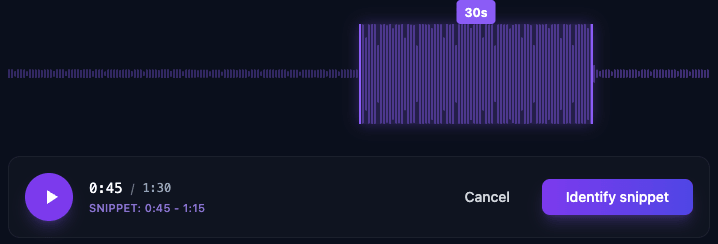
For a file longer than 30 seconds, Audio Finder opens Select 30-Second Snippet. Move the slider to a clear musical passage, preview it, then choose Identify snippet (Identify on narrow screens). Avoid sections dominated by speech or silence; 30 seconds is the selector’s setting, not a guarantee of recognition.
For example, if the music you want starts at 0:45 in a 90-second file, select 0:45–1:15. The screenshot below uses a separate synthetic demonstration file.
Existing audio clips use the same upload route. If no usable file or link is available, Audio Finder also offers microphone recording with permission; room noise, the speaker and the microphone affect that recording.
Check the recording version
A title can identify the composition without identifying the version used in the video. Before saving it:
- Compare the same lyric or musical passage in both recordings.
- Check the singer, instruments and arrangement. Is it a cover or live performance?
- If speed or pitch differs, look for “sped up,” “slowed” or “remix” versions.
- Cross-check an artist’s official upload or listening-platform release.
Identification does not give you permission to reuse the music; check its license separately.
If nothing matches
Match the symptom to the next step:
- Link cannot be accessed: check that it is one supported public video. Private, deleted or login-restricted content may be unavailable; use an authorized file if you have one.
- File will not open or upload: check its size and format, then export a shorter compatible copy. Changing the filename extension is not a conversion.
- Scan finishes with no match: try one clearer passage. Unreleased recordings, creator-made sounds or heavily altered remixes may remain outside catalog coverage; a no-match message does not establish the cause.
- Timeout or service error: check your connection and follow the retry guidance. Link-scan technical failures restore the scan or Credits.
- Free-use limit or insufficient Credits: follow the account notice. Editing the clip does not reset an allowance.
If another clear passage also fails, change methods rather than repeatedly spending scans. Search a distinctive lyric phrase in quotation marks, or ask the creator: “What track is playing at 0:45?”