Audio Transcriber
Use the audio transcriber to turn recorded speech into editable text.
Transcript preview
Reference demo
He hoped there would be stew for dinner, turnips and carrots and bruised potatoes and fat mutton pieces to be ladled out in thick peppered flour fattened sauce.
Listen first. Then try the recording yourself.Reference text, not a verified ASR result.
Try a demo
Hear it. Read it.
Explore audio transcriber examples with timed text and speaker labels.

Song Vocals
Archival vocal · Auld Lang Syne 0:00 / 0:51
An audio transcriber for text you can edit.
Transcribe audio to text, listen back, and keep your corrected version in one workspace.
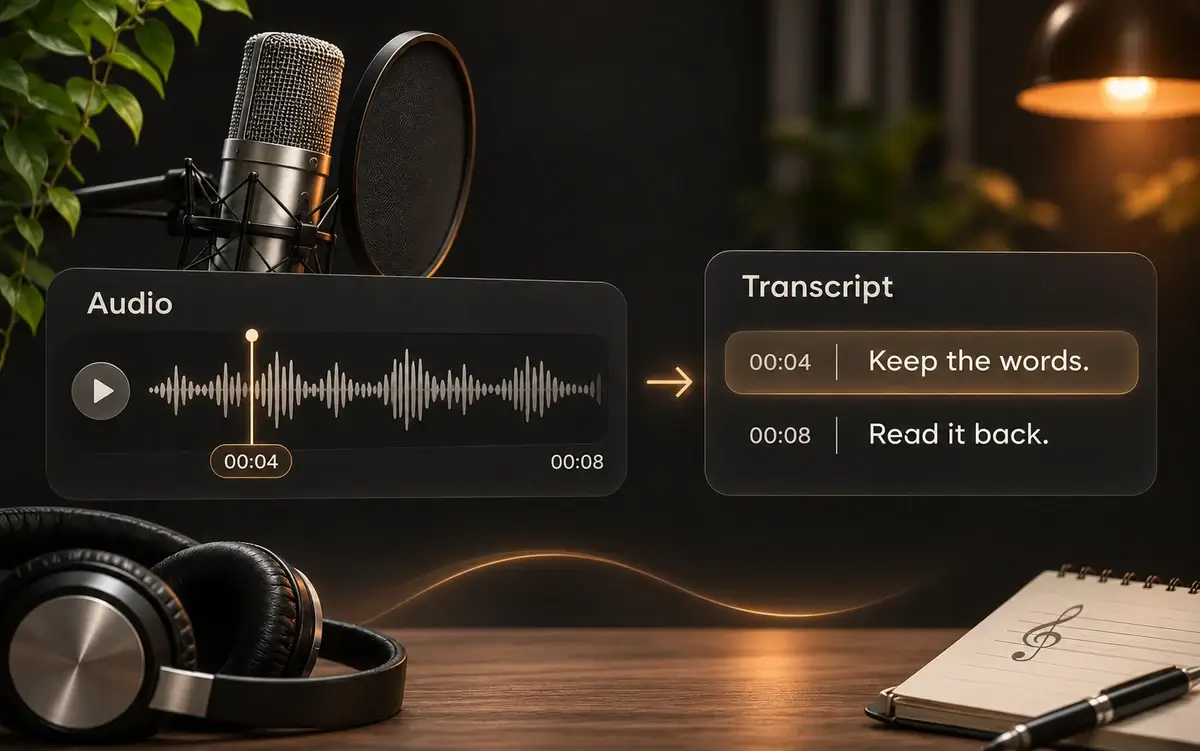
Turn speech into time-aligned text.
Use the audio transcriber to turn speech in MP3, WAV, M4A or FLAC recordings into timed text. Follow time-aligned segments and speaker labels, then select a timestamp to hear the source. Detect the language automatically or choose English, Spanish or Chinese.
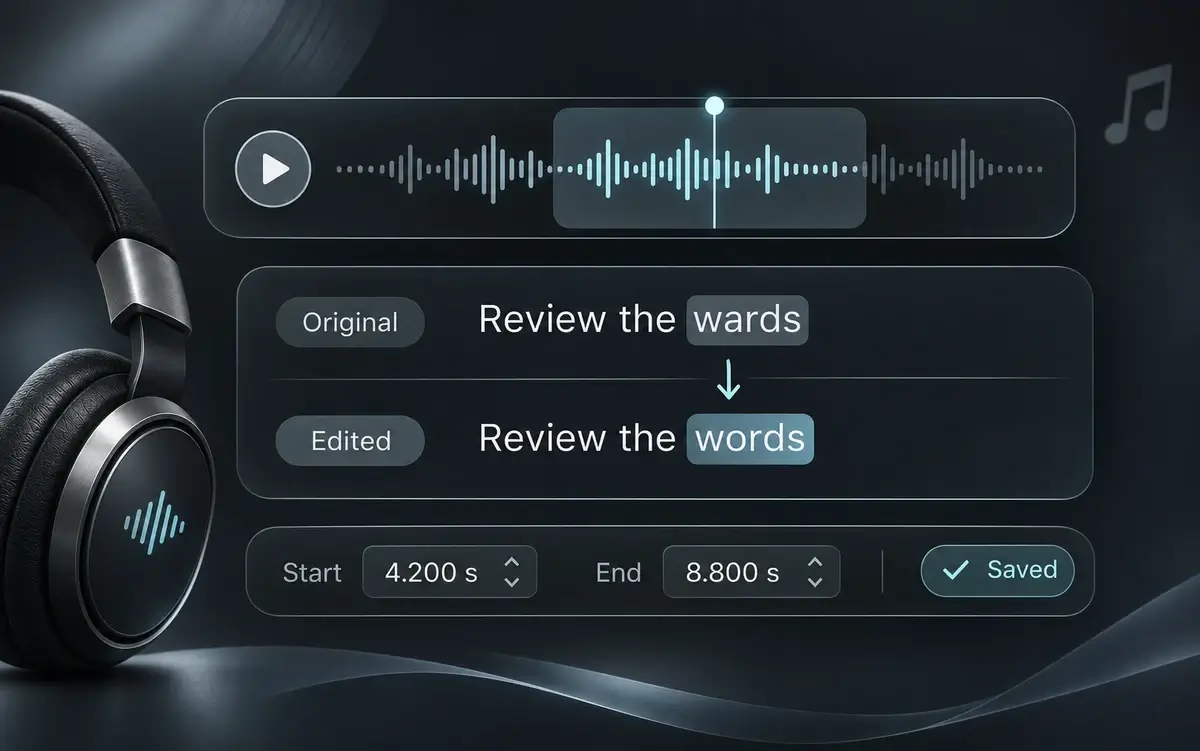
Edit your audio transcript while you listen.
The audio transcriber lets you correct names, numbers and unclear passages while listening. Adjust segment start and end times, save your edits, and reopen the same version from History. Seeking through the recording brings the matching text into view.
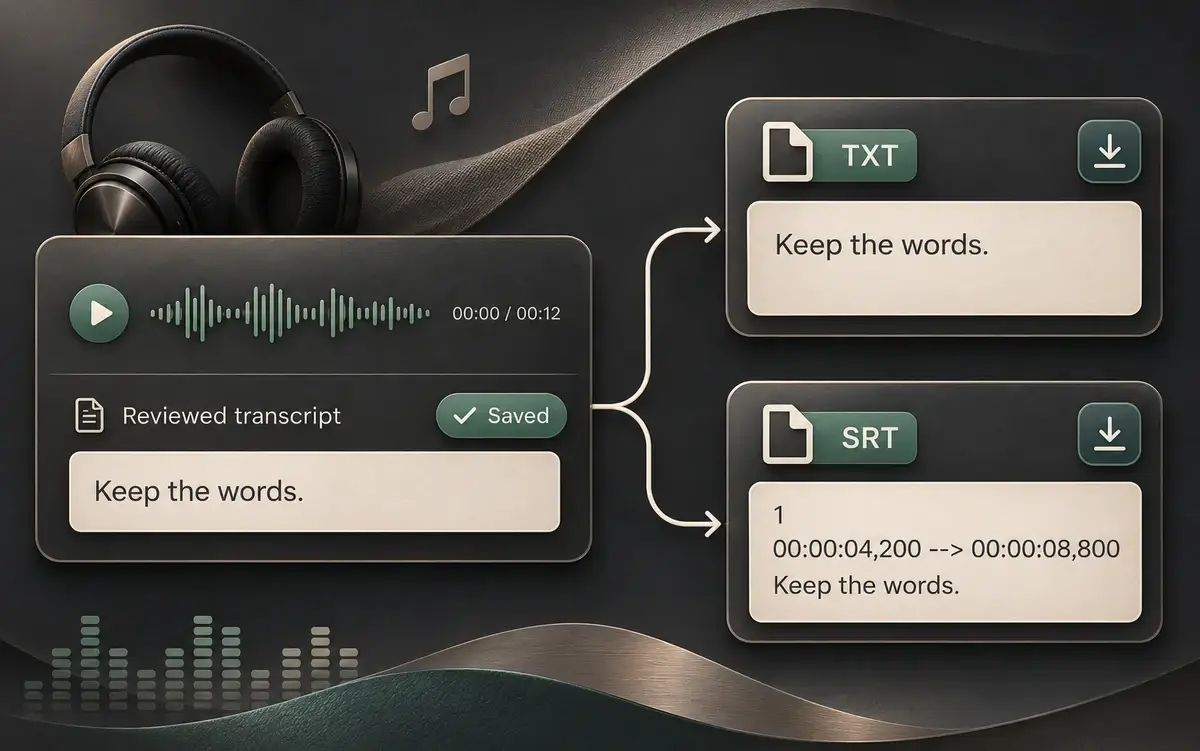
Download your transcript as TXT or SRT.
Download the audio transcriber’s saved transcript for your notes or video editor. Download a plain TXT transcript or an SRT file with timestamps. Both exports include your saved corrections and speaker labels, without running another transcription.
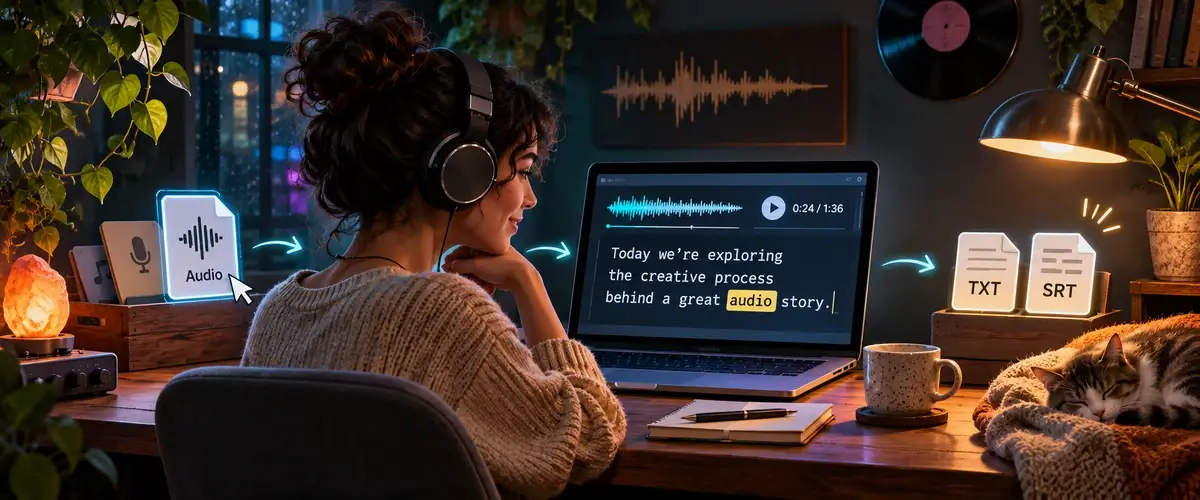
How to use the audio transcriber.
Go from an audio file to a saved transcript in four steps.
Choose audio
Choose an MP3, WAV, M4A or FLAC file up to 20 minutes and 100 MB, then set the speech language.
Start transcription
Review the audio transcriber’s estimate, based on 10 Credits per started minute, then start transcription. The server verifies the recording’s actual duration before processing.
Listen, correct, and save
Select a timestamp in the audio transcriber to replay a passage. Edit your audio transcript and subtitle timing, then save the corrected version.
Download TXT or SRT
Get a TXT transcript for notes or an SRT subtitle file with millisecond timestamps. Both formats keep your saved corrections.
Made for your recordings
For the words you want to keep.
Use the audio transcriber for interviews, podcast episodes, voice memos, and spoken-word subtitles.

Find the quote again.
Use speaker labels and timestamps in the audio transcriber to find interview quotes. Replay important passages and correct names before sharing the audio transcript.
Give your episode a written version.
The audio transcriber converts spoken podcast audio to text for show notes or subtitle editing. Review names, terminology and overlapping voices before publishing the transcript.
Come back to the useful part.
Use the audio transcriber to make a working transcript of a lecture or voice memo you have permission to process. Replay a timestamp and correct important details as you listen.

Bring the timing into your edit.
Use the audio transcriber to convert speech to text for an editable first draft of subtitles. Export SRT, import it into your editor, and check the timing against the final cut.
Before you press play
A few things
you might be wondering.
Formats, Credits, corrections, and what happens to your recording.
Read the Privacy PolicyHow do I use the audio transcriber?
To transcribe audio to text, choose an MP3, WAV, M4A or FLAC recording, review the Credits estimate, and start transcription. Listen back while editing the text and timing, then download TXT or SRT.
Can I convert MP3 to text, and which other files work?
Use the audio transcriber to convert MP3 to text or transcribe WAV, M4A and FLAC recordings. Files must have one audio track and stay within 100 MB and 20 minutes. Damaged, encrypted and video files are not accepted.
Can I edit text and timestamps in the audio transcriber?
Yes. Edit each segment’s text, start time and end time, then save your changes. Times are shown in seconds with millisecond precision. TXT and SRT downloads use the same saved transcript. Invalid times and overlaps within the same speaker must be corrected before saving. Separate assigned speakers may overlap when they speak at the same time.
How much does audio transcription cost?
The audio transcriber uses 10 Credits per started minute: a 45-second recording uses 10 Credits, while a 1-minute-10-second recording uses 20. You see an estimate before starting, and the server verifies the actual duration. Editing, saving and exporting a completed transcript do not use more Credits.
How accurate is audio transcription with background noise?
Audio transcription works best with clear speech. Accents, background noise, overlapping voices and music can affect the words and their timing. Listen to important passages and correct the transcript before relying on it.
Does the audio transcriber return Credits when a job fails?
If transcription fails, the Credits used for that job are returned. You can select the file and try again. Refreshing a task or opening a completed transcript from History does not start another paid transcription.
How does the audio transcriber handle my recordings?
Your audio is sent to ElevenLabs Scribe for speech recognition. Recordings and transcripts use private storage for 1 day, then are scheduled for deletion with cleanup every 15 minutes. You can delete a finished task earlier. ElevenLabs has its own privacy and retention policies; see our Privacy Policy for the wider service’s data practices.
Does this create sheet music or identify songs?
This audio transcriber turns recorded speech into text. It does not create sheet music, MIDI notes, identify a song, or search for published lyrics. Use the dedicated music tools for those tasks.
Your next recording
Let the words
stay with you.
Turn your next recording into editable text with the audio transcriber.
Review the words, then download TXT or SRT.